Run a Search with the REST API
Query a deployed pipeline from your app with the Search endpoint, filter documents at query time, and format the results for your users.
About This Task
The search endpoint is all you need to add search to your app. You send one or more queries to a deployed pipeline and get its results back in a single response. To get the response as it's generated, use the streaming endpoints instead. For details, see Stream Pipeline Responses.
We recommend setting the pipeline you plan to use in your app to the Production service level. This makes the pipeline scalable and reliable in production use cases. For more information, see Pipeline Hosting Settings.
Prerequisites
- You need a deployed, active pipeline.
- You need a Haystack Platform API key. For details, see Generate API Keys.
Run a Search
The easiest way is to start with the API reference documentation:
-
Go to the Search endpoint documentation page.
-
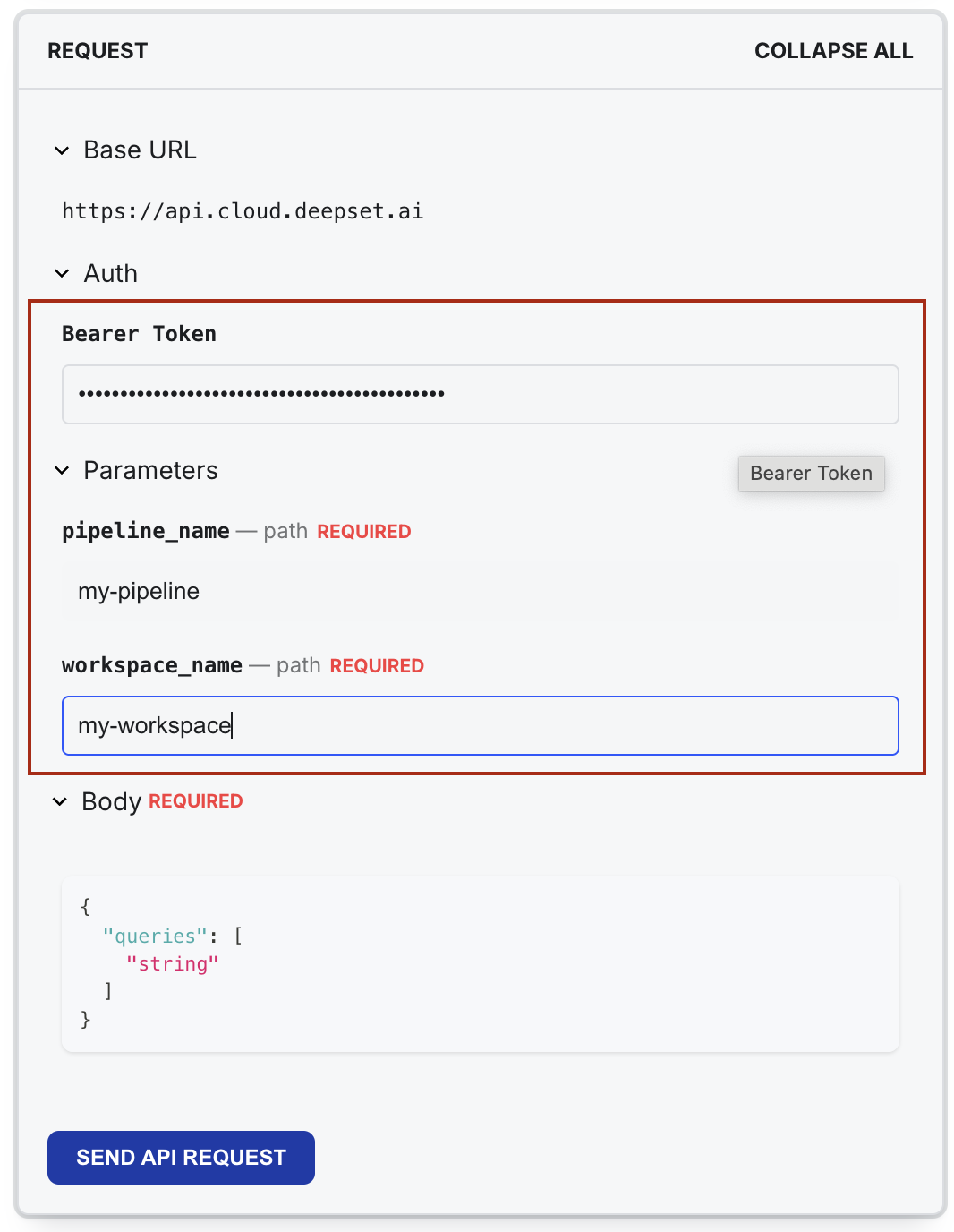
Enter the necessary parameters:
- In the Bearer field, paste your API key.
- Type the name of the pipeline to use for the search.
- Type the name of the workspace that contains the pipeline.
- Optionally, add filters. You can use metadata from your documents as filters to narrow the search. For details, see Filter Documents at Query Time.
- Optionally, add runtime parameters for the pipeline components. For details, see Pass Runtime Parameters.
- Type the queries.
-
Choose the programming language that you want to use and copy the code.
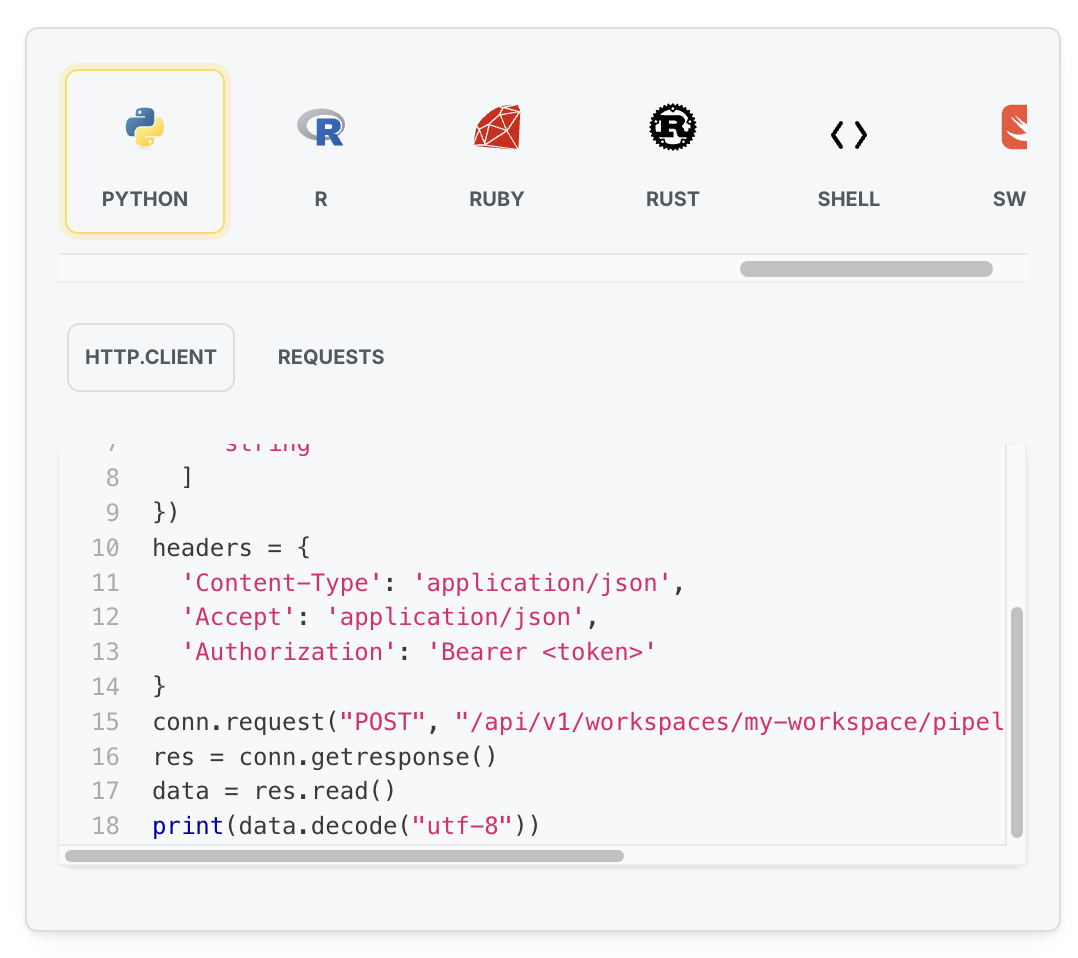
You can then wrap this code in a function and change it as needed.
Here's an example request:
curl --request POST \
     --url https://api.cloud.deepset.ai/api/v1/workspaces/<YOUR_WORKSPACE>/pipelines/<YOUR_PIPELINE>/search \
     --header 'accept: application/json' \
     --header 'authorization: Bearer <YOUR_API_KEY>' \
     --header 'content-type: application/json' \
     --data '
{
  "debug": true,
  "filters": {
    "field": "meta.field_name",
    "operator": "<operator>",
    "value": "field_value"
   },
  "params": {
    "param1": "value1",
    "param2": "value2"
  },
  "queries": [
    "my query"
  ]
}
'
Consider setting a default pipeline for your app. All traffic goes to the pipeline you indicate as default, so you can switch to a new pipeline without any downtime. For details, see Set the Default Pipeline.
Filter Documents at Query Time
You can use the metadata of your documents as filters that narrow down the scope of the search. Add the filter to the request payload like this:
curl --request POST \
     --url https://api.cloud.deepset.ai/api/v1/workspaces/<YOUR_WORKSPACE>/pipelines/<YOUR_PIPELINE>/search \
     --header 'accept: application/json' \
     --header 'authorization: Bearer <YOUR_API_KEY>' \
     --header 'content-type: application/json' \
     --data '
{
  "debug": false,
  "filters": {
    "operator": "AND",
    "conditions": [
      {"field": "meta.category", "operator": "==", "value": "news"},
      {"field": "meta.published_date", "operator": ">=", "value": "2024-01-01"}
    ]
  },
  "view_prompts": false,
  "queries": [
    "What did Alice write?"
  ]
}
'
For the filter structure and the operators you can use, see Filter Syntax.
Format Your Search Results
For question answering pipelines, you can highlight the answer in the document, which makes it much easier for the users to spot it. Here is an example of what it looks like:
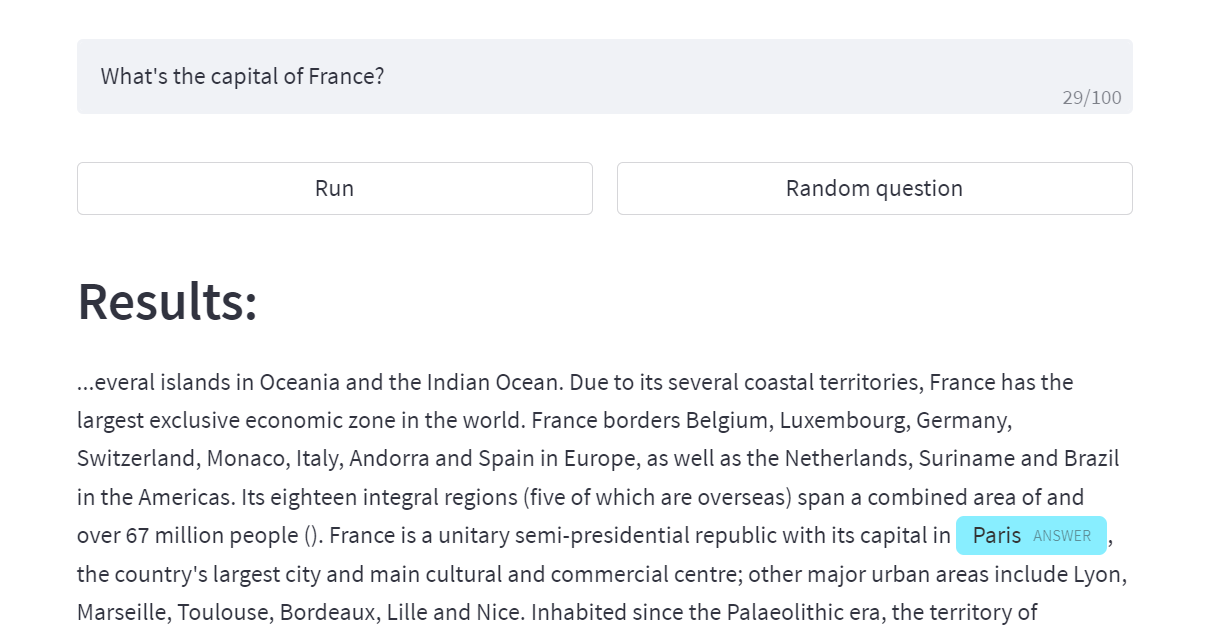
The response for a question answering pipeline contains the exact position of the answer both in the document (offsets_in_document) and in the context (offsets_in_context). You can use it to format how the answers are displayed.
Unused pipelines become idle after a period of inactivity to save resources. By default, development pipelines become idle after 20 minutes and production pipelines after 24 hours. You can customize the idle timeout on the Pipeline Details page, in the Settings tab. Idle pipelines get automatically activated if you start searching with them, or you can activate them manually on the Pipelines page. When a pipeline is idle, your data remains safe and accessible anytime. For more information, see Pipeline Hosting Settings.
Related Information
Was this page helpful?