Tutorial: Building a Deal Desk Agent with Search and Custom Code
Build an agent that helps a sales team decide whether a discount on a B2B deal can be approved. The agent uses two tools: a document search pipeline that finds the right pricing policy excerpts, and a custom code tool that applies your discount rules with exact thresholds.
- Level: Intermediate
- Time to complete: 20 minutes
- Prerequisites:
- A workspace where you'll build the agent.
- An LLM connection configured in your workspace. To learn how to set up an LLM connection, see Add Integrations.
- Basic knowledge of Pipelines and the Agent component.
- Goal: After completing this tutorial, you will have a working agent that searches deal desk policy documents and checks discount approval with deterministic business rules.
What You're Building
An agent that supports sales teams in deciding whether they can grant a discount on a deal based on the company's pricing policy. Account executives ask the deal desk questions like:
"A healthcare prospect wants 28% off a $95,000 annual contract. Can I approve this myself?"
To answer correctly, the agent needs to know two things:
- Policy context: What do the company's pricing guidelines say about healthcare caps, enterprise thresholds, and escalation?
- Who makes the final decision: Is this discount within rep authority, or does it need a manager or VP?
An LLM can summarize policy text, but it should not guess discount limits or approval tiers. That is what custom code is for.
The agent will have two tools:
search_deal_policy— A document search pipeline that retrieves relevant deal desk and pricing policy snippets. It works on your own files.check_discount_approval— A custom Python function that takes deal facts (ACV, discount percent, contract term, vertical) and returns a structured approval result. The function is configured with fixed thresholds (rep limit, manager limit, VP limit) that you set once in the tool card. The agent extracts the deal facts from the sales rep's message and passes them to the tool at runtime.
Search finds the policy language to cite. Code applies the rules the same way every time. The agent combines both into a clear answer for the sales rep.
Upload Sample Files
Upload a small deal desk policy corpus. You can use your own documents, or use the sample files prepared for this tutorial.
- Download the four files from the
GDrive folder. - In Haystack Enterprise Platform, switch to the workspace where you want to build the agent and go to Files > Upload Files.
- Choose the files you downloaded and click Upload. Wait until the files are uploaded to the workspace.
Result: Your workspace contains four Atlas Analytics policy documents:
| File | What it represents |
|---|---|
deal-desk-discount-policy.md | Rep, manager, and VP discount authority |
enterprise-pricing-guidelines.md | List price bands and packaging tiers |
healthcare-vertical-rules.md | Extra caps and approvals for healthcare deals |
approval-escalation-matrix.md | Who must approve which discount scenarios |
Create an Index
Index the files so the agent can search them.
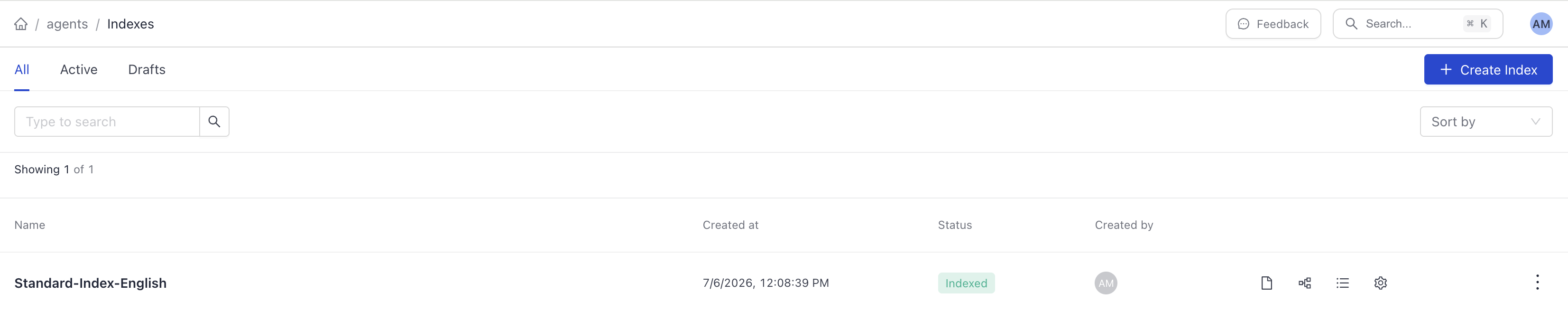
- Go to Indexes > Create Index.
- Choose Standard Index (English) and click Create Index.
- Leave the default index configuration and click Enable. Wait until indexing finishes.
Result: Your files are indexed and ready for search. The Standard Index (English) index has status indexed.
Create the Agent
-
In Haystack Enterprise Platform, open the workspace where your index lives and go to Pipelines > Create Pipeline.
-
On the Templates page, click Create empty pipeline.
-
Enter deal-desk-agent as the pipeline name and click Create Pipeline.
-
In Builder, click Add to open the component library and add the following components:
InputAgentOutput
-
Connect
Inputto theAgentandAgenttoOutput. -
Click Model on the
Agentcomponent and choose the model you want to use for the agent.
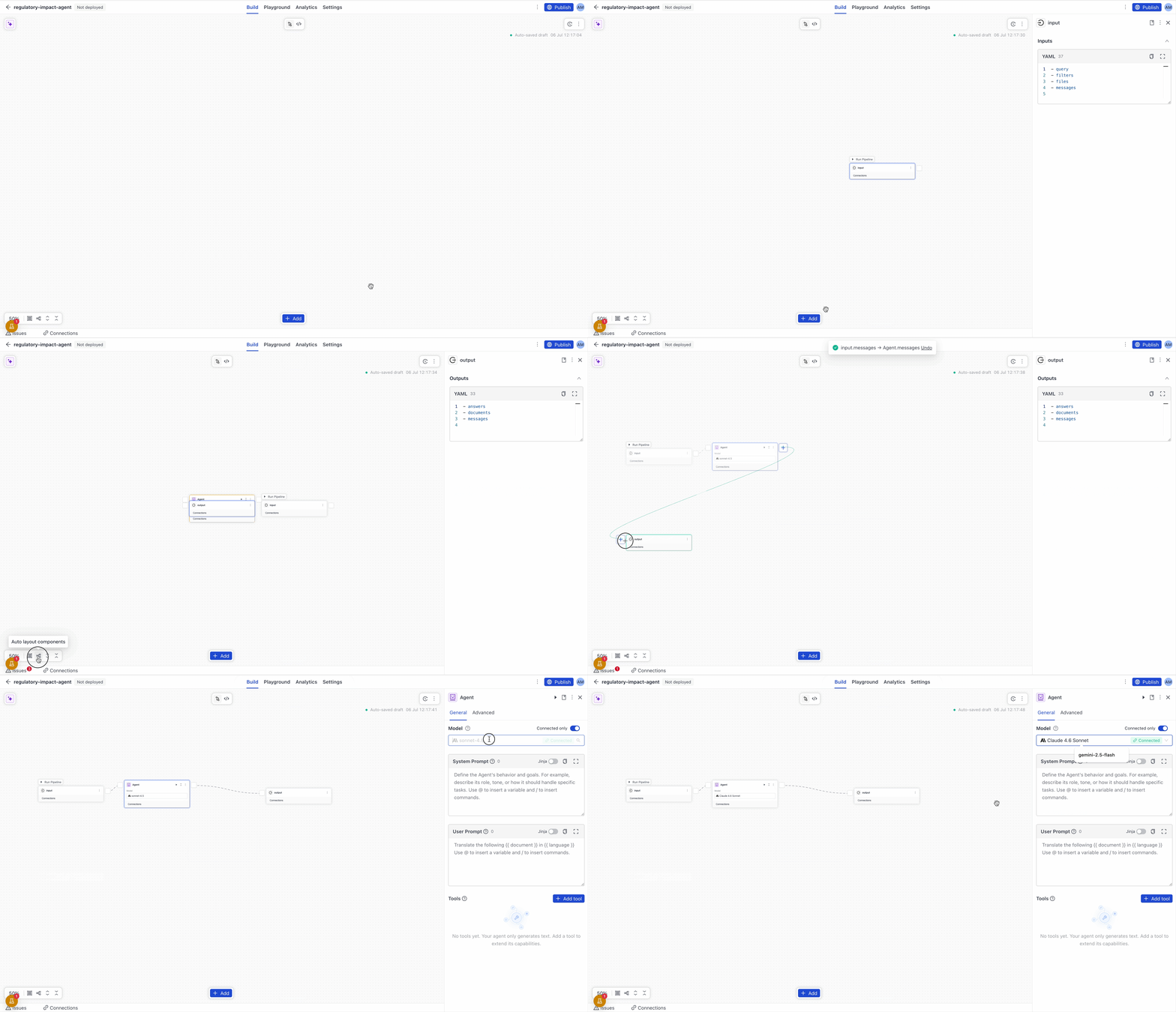
Result: You have created a minimal agent. Next you will add the two tools and the system prompt.
Create the Deal Policy Search Pipeline
Create the first tool: a document search pipeline over your deal desk policies.
- Leave Builder and go to Pipeline Templates.
- Choose Document Search as the category, find Semantic Document Search, and click Use Template.
- Enter deal-policy-search as the pipeline name and click Create Pipeline.
- Click the
OpenSearchDocumentStorecomponent to open its configuration and in the Index field,choose the Standard Index (English) index. - Test the pipeline: click Run Pipeline next to the
Inputcomponent and typehealthcare discount cap. You should see retrieved policy snippets. - Click Deploy to make the pipeline available to the agent as a tool. Confirm you're deploying the latest version and click Deploy.
Pipeline YAML
This is the YAML configuration for the document search pipeline:
components:
  query_embedder:
    type: deepset_cloud_custom_nodes.embedders.nvidia.text_embedder.DeepsetNvidiaTextEmbedder
    init_parameters:
      normalize_embeddings: true
      model: intfloat/e5-base-v2

  embedding_retriever:
    # Selects the most similar documents from the document store
    type: haystack_integrations.components.retrievers.opensearch.embedding_retriever.OpenSearchEmbeddingRetriever
    init_parameters:
      document_store:
        type: haystack_integrations.document_stores.opensearch.document_store.OpenSearchDocumentStore
        init_parameters:
          embedding_dim: 768
          index: Standard-Index-English
      top_k: 20 # The number of results to return

  ranker:
    type: deepset_cloud_custom_nodes.rankers.nvidia.ranker.DeepsetNvidiaRanker
    init_parameters:
      model: tomaarsen/Qwen3-Reranker-0.6B-seq-cls
      top_k: 20

connections:
- sender: query_embedder.embedding
  receiver: embedding_retriever.query_embedding
- sender: embedding_retriever.documents
  receiver: ranker.documents

inputs:
  query:
  - query_embedder.text
  - ranker.query
  filters:
  - embedding_retriever.filters

outputs:
  documents: ranker.documents
Result: You have a document search pipeline that returns relevant policy snippets and is ready to be used as a tool.
Add the Deal Policy Search Tool to the Agent
Attach the search pipeline as a tool on your agent:
- Leave Builder and on the Pipelines page click the deal-desk-agent pipeline to open it.
- Click the
Agentcomponent to open its configuration. - In the Tools section, click Add Tool.
- Choose Pipeline as the tool type.
- On the Create Pipeline Tool window, choose Existing pipeline and select deal-policy-search.
- Leave Current draft as the pipeline version.
- Enter
search_deal_policyas the tool name. - Copy the following text and paste it as the tool description:
Search Atlas Analytics deal desk policies for discount authority, pricing tiers,vertical rules, and approval escalation. Use when you need policy language tocite in a discount approval answer.
- Click Add Pipeline Tool.
Result: The agent has a pipeline tool that can search deal desk policies.
When you add an existing pipeline as a tool, the platform handles input and output mapping for you. For details, see Add a Pipeline as a Tool.
Add the Discount Approval Code Tool
The second tool encodes the company's discount approval rules in Python. The code uses a class with __init__ parameters for the fixed thresholds and a @tool function the agent calls with per-deal facts from the conversation.
__init__ parameters are configured once in the tool card UI — they're the business rules that rarely change (discount caps, ACV thresholds). @tool function arguments are what the agent passes at runtime from the sales rep's message (contract value, discount percent, term, vertical). To create a second pipeline with different thresholds for a different market, you clone it and change only the init parameters.
- On the
Agentcomponentconfiguration, in the Tools section, click Add Tool. - Choose Code as the tool type.
- Type
check_discount_approvalas the tool name. - Copy the following text and paste it as the tool description:
Check whether a requested discount needs rep, manager, or VP approval given ACV, discount percent, contract term, and vertical.note
Keep the description on a single line. Some LLM providers, including Anthropic, reject tool descriptions that contain line breaks.
- Click Create Tool.
- In the code editor, paste the following code replacing the example code:
from typing import Annotated
from haystack.tools import tool
class DiscountApprovalEngine:
"""Discount rules configured at deploy time through init parameters."""
def __init__(
self,
max_rep_discount_percent: float = 15,
manager_max_discount_percent: float = 25,
vp_approval_acv_threshold_usd: float = 75000,
healthcare_max_without_vp: float = 20,
multi_year_bonus_percent: float = 3,
):
self.max_rep_discount_percent = max_rep_discount_percent
self.manager_max_discount_percent = manager_max_discount_percent
self.vp_approval_acv_threshold_usd = vp_approval_acv_threshold_usd
self.healthcare_max_without_vp = healthcare_max_without_vp
self.multi_year_bonus_percent = multi_year_bonus_percent
def check(
self,
annual_contract_value_usd: float,
requested_discount_percent: float,
contract_term_years: int,
industry_vertical: str,
) -> dict:
vertical = industry_vertical.strip().lower()
healthcare_verticals = {"healthcare", "life_sciences", "life sciences", "pharma"}
rep_limit = self.max_rep_discount_percent
if contract_term_years >= 2:
rep_limit += self.multi_year_bonus_percent
if vertical in healthcare_verticals and requested_discount_percent > self.healthcare_max_without_vp:
return {
"rep_can_approve": False,
"approval_required": "vp_sales",
"rep_discount_limit_percent": rep_limit,
"reason": (
f"Healthcare vertical discounts above {self.healthcare_max_without_vp}% "
"require VP Sales approval."
),
}
if (
annual_contract_value_usd > self.vp_approval_acv_threshold_usd
and requested_discount_percent > self.max_rep_discount_percent
):
return {
"rep_can_approve": False,
"approval_required": "vp_sales",
"rep_discount_limit_percent": rep_limit,
"reason": (
f"Deals over ${self.vp_approval_acv_threshold_usd:,.0f} with a discount "
f"above {self.max_rep_discount_percent}% require VP Sales approval."
),
}
if requested_discount_percent <= rep_limit:
return {
"rep_can_approve": True,
"approval_required": "none",
"rep_discount_limit_percent": rep_limit,
"reason": (
f"Requested discount is within the rep limit of {rep_limit}% "
f"({'includes multi-year bonus' if contract_term_years >= 2 else 'standard authority'})."
),
}
if requested_discount_percent <= self.manager_max_discount_percent:
return {
"rep_can_approve": False,
"approval_required": "sales_manager",
"rep_discount_limit_percent": rep_limit,
"reason": (
f"Discount exceeds rep limit of {rep_limit}% but is within the "
f"{self.manager_max_discount_percent}% manager threshold."
),
}
return {
"rep_can_approve": False,
"approval_required": "vp_sales",
"rep_discount_limit_percent": rep_limit,
"reason": (
f"Discount above {self.manager_max_discount_percent}% requires VP Sales approval."
),
}
_engine = DiscountApprovalEngine()
@tool
def check_discount_approval(
annual_contract_value_usd: Annotated[float, "Annual contract value in USD"],
requested_discount_percent: Annotated[float, "Requested discount as a percentage, for example 28 for 28%"],
contract_term_years: Annotated[int, "Contract length in years"],
industry_vertical: Annotated[
str,
"Industry vertical, for example healthcare, financial_services, or standard",
],
):
"""Check discount approval level using Atlas Analytics deal desk rules."""
acv = float(str(annual_contract_value_usd).replace(",", ""))
discount = float(str(requested_discount_percent).replace("%", "").strip())
term = int(str(contract_term_years).strip())
return _engine.check(
annual_contract_value_usd=acv,
requested_discount_percent=discount,
contract_term_years=term,
industry_vertical=industry_vertical,
)
- Close the code editor.
Result: The agent has a code tool that returns a structured approval result for any deal the sales rep describes.
Set the System Prompt
Give the agent instructions so it knows when to use each tool.
- Click the Agent component to open its configuration.
- Copy the following text and paste it as the system prompt:
You are an Atlas Analytics deal desk assistant helping sales reps evaluate discount requests.
You have access to two tools:
1. search_deal_policy: Search deal desk policies for discount authority, pricing tiers, vertical rules, and approval escalation.
2. check_discount_approval: Check whether a discount can be approved at rep level or needs escalation. Pass annual_contract_value_usd, requested_discount_percent, contract_term_years, and industry_vertical.
Workflow:
- Extract deal facts from the user's message (ACV, discount, contract term, vertical).
- If any fact is missing, ask one short follow-up question.
- Call check_discount_approval with the extracted facts.
- Call search_deal_policy to find policy excerpts that support your answer.
- Combine the approval result with policy citations in your reply.
Response format:
- Can the rep approve: yes or no
- Approval required: none, sales_manager, or vp_sales
- Rep discount limit
- Policy references from search_deal_policy
- Next steps for the sales rep
Full AgentYAML Configuration
This is the YAML configuration for the agent with tools:
inputs:
query: []
filters: []
files: []
messages:
- Agent.messages
components:
Agent:
type: haystack.components.agents.agent.Agent
init_parameters:
chat_generator:
type: haystack_integrations.components.generators.anthropic.chat.chat_generator.AnthropicChatGenerator
init_parameters:
model: claude-sonnet-5-5
ignore_tools_thinking_messages: true
api_key:
type: env_var
strict: true
env_vars:
- ANTHROPIC_API_KEY
tools:
- type: haystack.tools.pipeline_tool.PipelineTool
data:
name: search_deal_policy
description: >-
Search Atlas Analytics deal desk policies for discount authority, pricing tiers,
vertical rules, and approval escalation. Use when you need policy language to
cite in a discount approval answer.
input_mapping:
query:
- query_embedder.text
- ranker.query
filters:
- embedding_retriever.filters
output_mapping:
ranker.documents: documents
pipeline:
components:
query_embedder:
type: deepset_cloud_custom_nodes.embedders.nvidia.text_embedder.DeepsetNvidiaTextEmbedder
init_parameters:
normalize_embeddings: true
model: intfloat/e5-base-v2
embedding_retriever:
type: haystack_integrations.components.retrievers.opensearch.embedding_retriever.OpenSearchEmbeddingRetriever
init_parameters:
document_store:
type: haystack_integrations.document_stores.opensearch.document_store.OpenSearchDocumentStore
init_parameters:
embedding_dim: 768
index: Standard-Index-English
top_k: 20
ranker:
type: deepset_cloud_custom_nodes.rankers.nvidia.ranker.DeepsetNvidiaRanker
init_parameters:
model: tomaarsen/Qwen3-Reranker-0.6B-seq-cls
top_k: 20
connections:
- sender: query_embedder.embedding
receiver: embedding_retriever.query_embedding
- sender: embedding_retriever.documents
receiver: ranker.documents
is_pipeline_async: false
inputs_from_state: {}
outputs_to_string: {}
outputs_to_state: {}
_meta:
name: search_deal_policy
description: >-
Search Atlas Analytics deal desk policies for discount authority,
pricing tiers,
vertical rules, and approval escalation. Use when you need policy language to
cite in a discount approval answer.
tool_id:
pipeline_version_id: c9bdb695-fa2e-47c7-a25a-3bccc9701817
- type: deepset_cloud_custom_nodes.tools.code_tool.CodeTool
data:
name: check_discount_approval
description: Check whether a requested discount needs rep, manager, or VP
approval given ACV, discount percent, contract term, and vertical.
code: "from typing import Annotated\r
\r
from haystack.tools import tool\r
\r
\r
class DiscountApprovalEngine:\r
\ \"\"\"Discount rules configured at deploy time through init
parameters.\"\"\"\r
\r
\ def __init__(\r
\ self,\r
\ max_rep_discount_percent: float = 15,\r
\ manager_max_discount_percent: float = 25,\r
\ vp_approval_acv_threshold_usd: float = 75000,\r
\ healthcare_max_without_vp: float = 20,\r
\ multi_year_bonus_percent: float = 3,\r
\ ):\r
\ self.max_rep_discount_percent = max_rep_discount_percent\r
\ self.manager_max_discount_percent =
manager_max_discount_percent\r
\ self.vp_approval_acv_threshold_usd =
vp_approval_acv_threshold_usd\r
\ self.healthcare_max_without_vp =
healthcare_max_without_vp\r
\ self.multi_year_bonus_percent = multi_year_bonus_percent\r
\r
\ def check(\r
\ self,\r
\ annual_contract_value_usd: float,\r
\ requested_discount_percent: float,\r
\ contract_term_years: int,\r
\ industry_vertical: str,\r
\ ) -> dict:\r
\ vertical = industry_vertical.strip().lower()\r
\ healthcare_verticals = {\"healthcare\", \"life_sciences\",
\"life sciences\", \"pharma\"}\r
\r
\ rep_limit = self.max_rep_discount_percent\r
\ if contract_term_years >= 2:\r
\ rep_limit += self.multi_year_bonus_percent\r
\r
\ if vertical in healthcare_verticals and
requested_discount_percent > self.healthcare_max_without_vp:\r
\ return {\r
\ \"rep_can_approve\": False,\r
\ \"approval_required\": \"vp_sales\",\r
\ \"rep_discount_limit_percent\": rep_limit,\r
\ \"reason\": (\r
\ f\"Healthcare vertical discounts above
{self.healthcare_max_without_vp}% \"\r
\ \"require VP Sales approval.\"\r
\ ),\r
\ }\r
\r
\ if (\r
\ annual_contract_value_usd >
self.vp_approval_acv_threshold_usd\r
\ and requested_discount_percent >
self.max_rep_discount_percent\r
\ ):\r
\ return {\r
\ \"rep_can_approve\": False,\r
\ \"approval_required\": \"vp_sales\",\r
\ \"rep_discount_limit_percent\": rep_limit,\r
\ \"reason\": (\r
\ f\"Deals over
${self.vp_approval_acv_threshold_usd:,.0f} with a discount \"\r
\ f\"above {self.max_rep_discount_percent}%
require VP Sales approval.\"\r
\ ),\r
\ }\r
\r
\ if requested_discount_percent <= rep_limit:\r
\ return {\r
\ \"rep_can_approve\": True,\r
\ \"approval_required\": \"none\",\r
\ \"rep_discount_limit_percent\": rep_limit,\r
\ \"reason\": (\r
\ f\"Requested discount is within the rep limit
of {rep_limit}% \"\r
\ f\"({'includes multi-year bonus' if
contract_term_years >= 2 else 'standard authority'}).\"\r
\ ),\r
\ }\r
\r
\ if requested_discount_percent <=
self.manager_max_discount_percent:\r
\ return {\r
\ \"rep_can_approve\": False,\r
\ \"approval_required\": \"sales_manager\",\r
\ \"rep_discount_limit_percent\": rep_limit,\r
\ \"reason\": (\r
\ f\"Discount exceeds rep limit of {rep_limit}%
but is within the \"\r
\ f\"{self.manager_max_discount_percent}% manager
threshold.\"\r
\ ),\r
\ }\r
\r
\ return {\r
\ \"rep_can_approve\": False,\r
\ \"approval_required\": \"vp_sales\",\r
\ \"rep_discount_limit_percent\": rep_limit,\r
\ \"reason\": (\r
\ f\"Discount above
{self.manager_max_discount_percent}% requires VP Sales approval.\"\r
\ ),\r
\ }\r
\r
\r
_engine = DiscountApprovalEngine()\r
\r
\r
@tool\r
def check_discount_approval(\r
\ annual_contract_value_usd: Annotated[float, \"Annual contract
value in USD\"],\r
\ requested_discount_percent: Annotated[float, \"Requested
discount as a percentage, for example 28 for 28%\"],\r
\ contract_term_years: Annotated[int, \"Contract length in
years\"],\r
\ industry_vertical: Annotated[\r
\ str,\r
\ \"Industry vertical, for example healthcare,
financial_services, or standard\",\r
\ ],\r
):\r
\ \"\"\"Check discount approval level using Atlas Analytics deal
desk rules.\"\"\"\r
\ acv = float(str(annual_contract_value_usd).replace(\",\",
\"\"))\r
\ discount = float(str(requested_discount_percent).replace(\"%\",
\"\").strip())\r
\ term = int(str(contract_term_years).strip())\r
\ return _engine.check(\r
\ annual_contract_value_usd=acv,\r
\ requested_discount_percent=discount,\r
\ contract_term_years=term,\r
\ industry_vertical=industry_vertical,\r
\ )"
_meta:
name: check_discount_approval
description:
tool_id:
system_prompt: >-
{% message role="system" %}
You are an Atlas Analytics deal desk assistant helping sales reps evaluate discount requests.

You have access to two tools:

1. search_deal_policy: Search deal desk policies for discount authority, pricing tiers, vertical rules, and approval escalation.

2. check_discount_approval: Check whether a discount can be approved at rep level or needs escalation. Pass annual_contract_value_usd, requested_discount_percent, contract_term_years, and industry_vertical.

Workflow:
- Extract deal facts from the user's message (ACV, discount, contract term, vertical).
- If any fact is missing, ask one short follow-up question.
- Call check_discount_approval with the extracted facts.
- Call search_deal_policy to find policy excerpts that support your answer.
- Combine the approval result with policy citations in your reply.

Response format:
- Can the rep approve: yes or no
- Approval required: none, sales_manager, or vp_sales
- Rep discount limit
- Policy references from search_deal_policy
- Next steps for the sales rep
{% endmessage %}
user_prompt:
required_variables:
exit_conditions:
state_schema: {}
max_agent_steps: 100
streaming_callback:
raise_on_tool_invocation_failure: false
outputs:
answers:
documents:
messages: Agent.messages
Result: The agent has a clear policy for when and how to use each tool.
Test the Agent
- In Builder, with the deal-desk-agent pipeline open, click Run Pipeline next to the Input component.
- Paste a message like this:
A healthcare prospect wants 28% off a $95,000 annual contract on a 1-year deal.
Can the rep approve this discount?
The code tool should report VP Sales approval required (healthcare cap is 20%). The agent should cite the healthcare vertical rules and escalation matrix from search_deal_policy.
- Try a deal the rep can approve:
A standard SaaS prospect wants 12% off a $40,000 annual contract on a 1-year deal.
Can the rep approve this?
The code tool should report rep can approve (12% is within the 15% rep limit).
Result: Congratulations!You have created an agent that can answer discount approval questions with a mix of policy citations and deterministic business rules. The agent uses two tools: search_deal_policy for citations and check_discount_approval for the definitive call.
What's Next
- Add more vertical rules or regional pricing tiers to the code tool init parameters.
- Connect the agent to your CRM through an MCP server tool. For details, see Use Your Pipeline as an MCP Tool.
- Use Prompt Explorer to refine the system prompt.
- For more on agents and tools, see Agent Tools.
Was this page helpful?