Release 2026.6
June brings exciting updates: now your pipelines are available as MCP tools!
Use Your Pipelines as MCP Tools
You can now use your deployed pipelines as MCP tools, making them available to AI coding assistants like Cursor, VS Code, or Claude Code. In Haystack Enterprise Platform, this works at the workspace level: you create one MCP server for your workspace, then individually enable each pipeline as its tool. A pipeline is not available as a tool until you explicitly turn it on in the pipeline's settings.
When an AI client connects to your workspace's MCP endpoint, it discovers all the pipelines you enabled and can call them as tools. Each tool can have its own name, description, and instructions to help the AI assistant understand when and how to use it.
This means you can mix and match pipelines within a single MCP server — for example, a RAG pipeline for knowledge retrieval, a data processing pipeline for transformation tasks, and a summarization pipeline for document analysis — all accessible through one endpoint.
For details, see Use Your Pipelines as MCP Tools.
Builder Updates
New Layout
We've revamped Builder to make the building experience complete. Now, you can switch between Builder, Playground, pipeline analytics, and settings all in one place. No more switching between pages.
Simplified Component Layouts and Clearer Connections
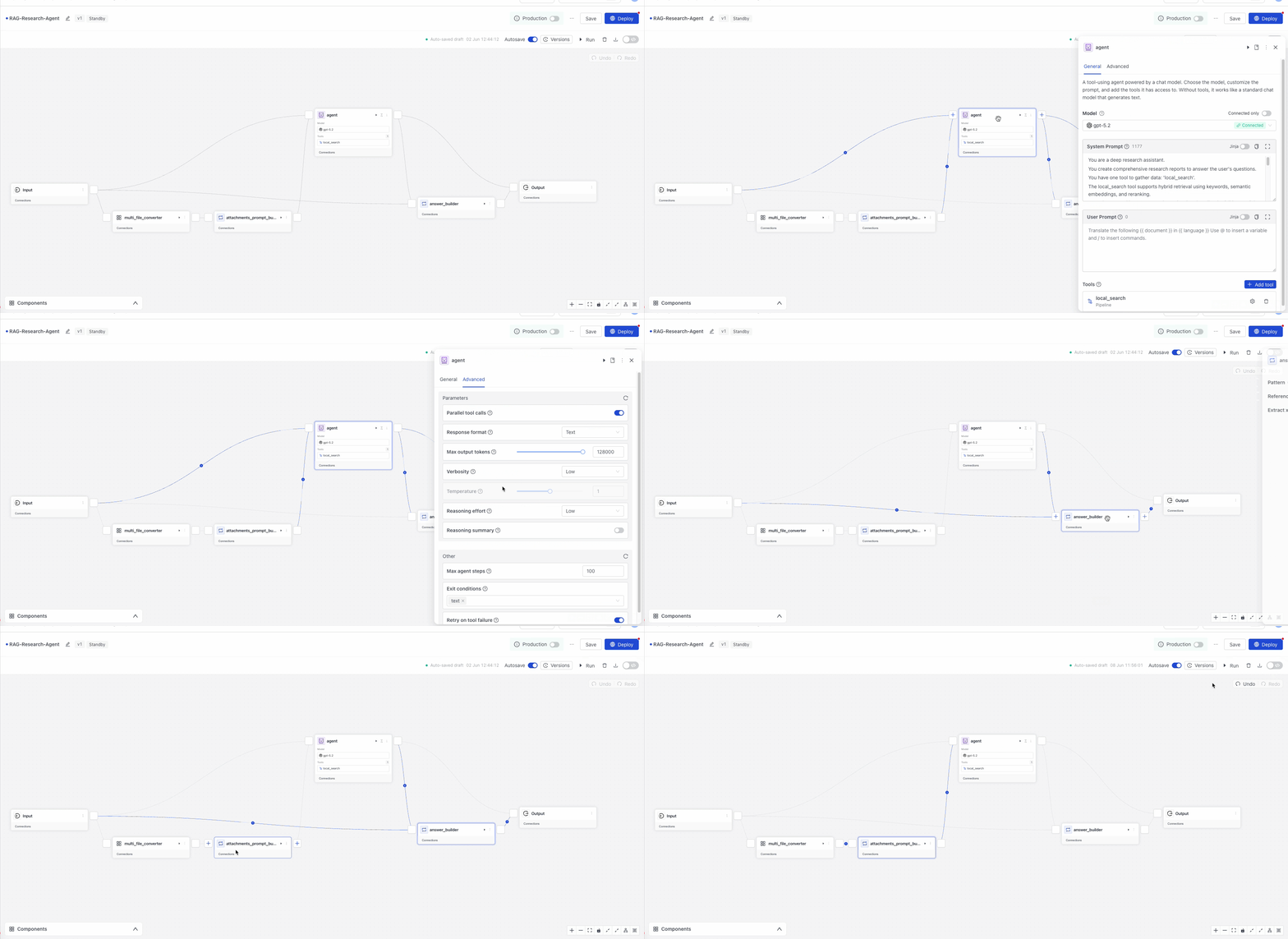
Building pipelines just got cleaner. We've redesigned component layouts to give you a more transparent view of your pipeline. Now, you configure components in a configuration panel that opens when you click the component card.
We've also added an expandable Connections panel to help you understand how components are connected and how data flows through your pipeline. Expand it for a full overview, or click any component to inspect its connections up close.
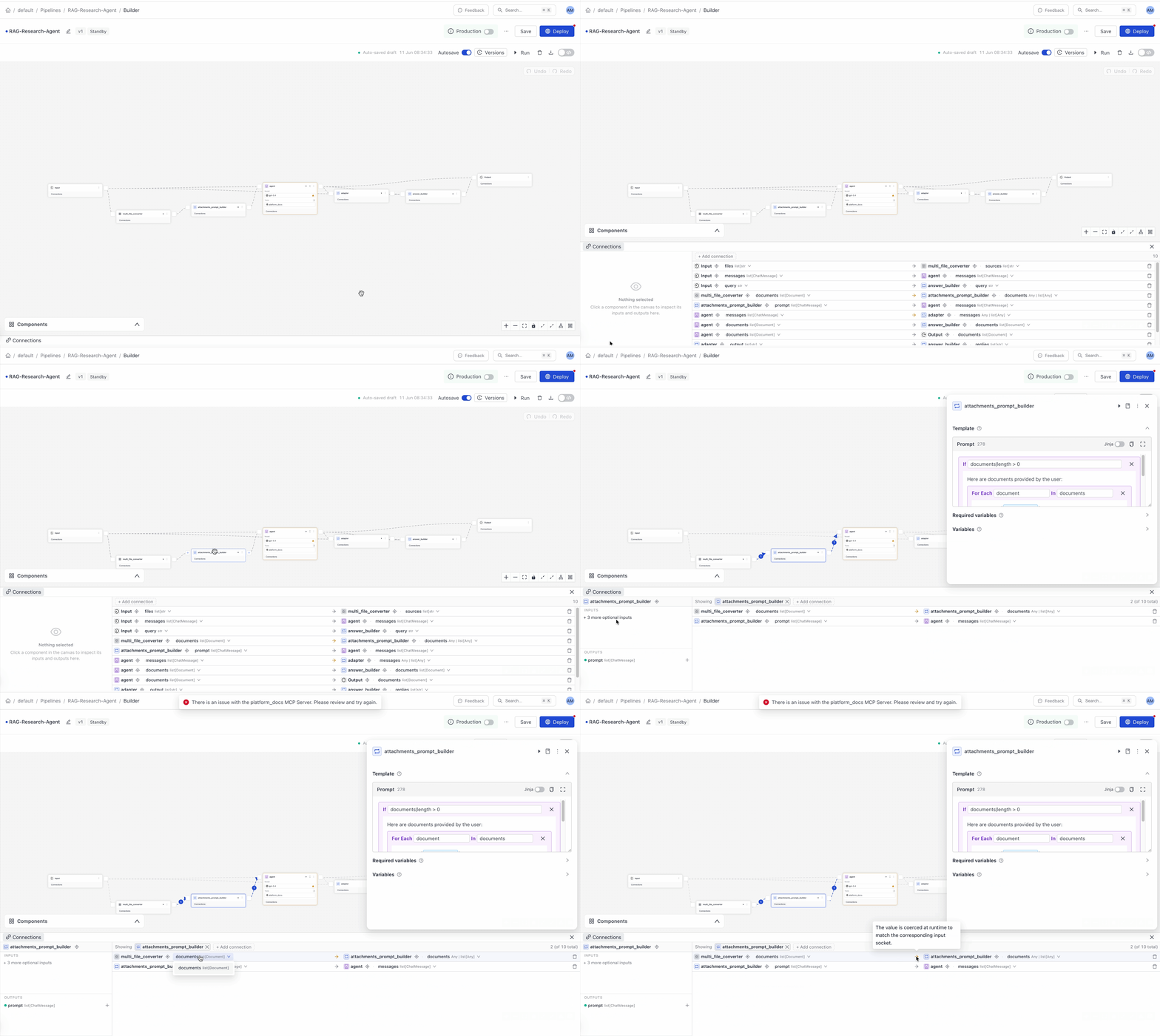
You can now also use the Command Palette to create connections. Press CMD + K to open it and type connect to see the available commands.
Global Issues Panel
Builder now has a global Issues panel at the bottom of the canvas, next to the Connections tab. It collects all validation and runtime issues in one place, so you don't have to hunt through individual components to find out what's wrong.
When an issue appears, click Inspect next to it to jump directly to the affected component or connection and fix it.
Type Literal @ and / in the Prompt Editor
You can now type a literal @ or / character in the Jinja2 prompt editor when configuring the prompt for the LLM or Agent components. Typing either character opens a list of available variables or functions, but if you press Escape after the list appears, the character is inserted into the prompt.
Search History Updates
Notes and Hashtags on Search History Records
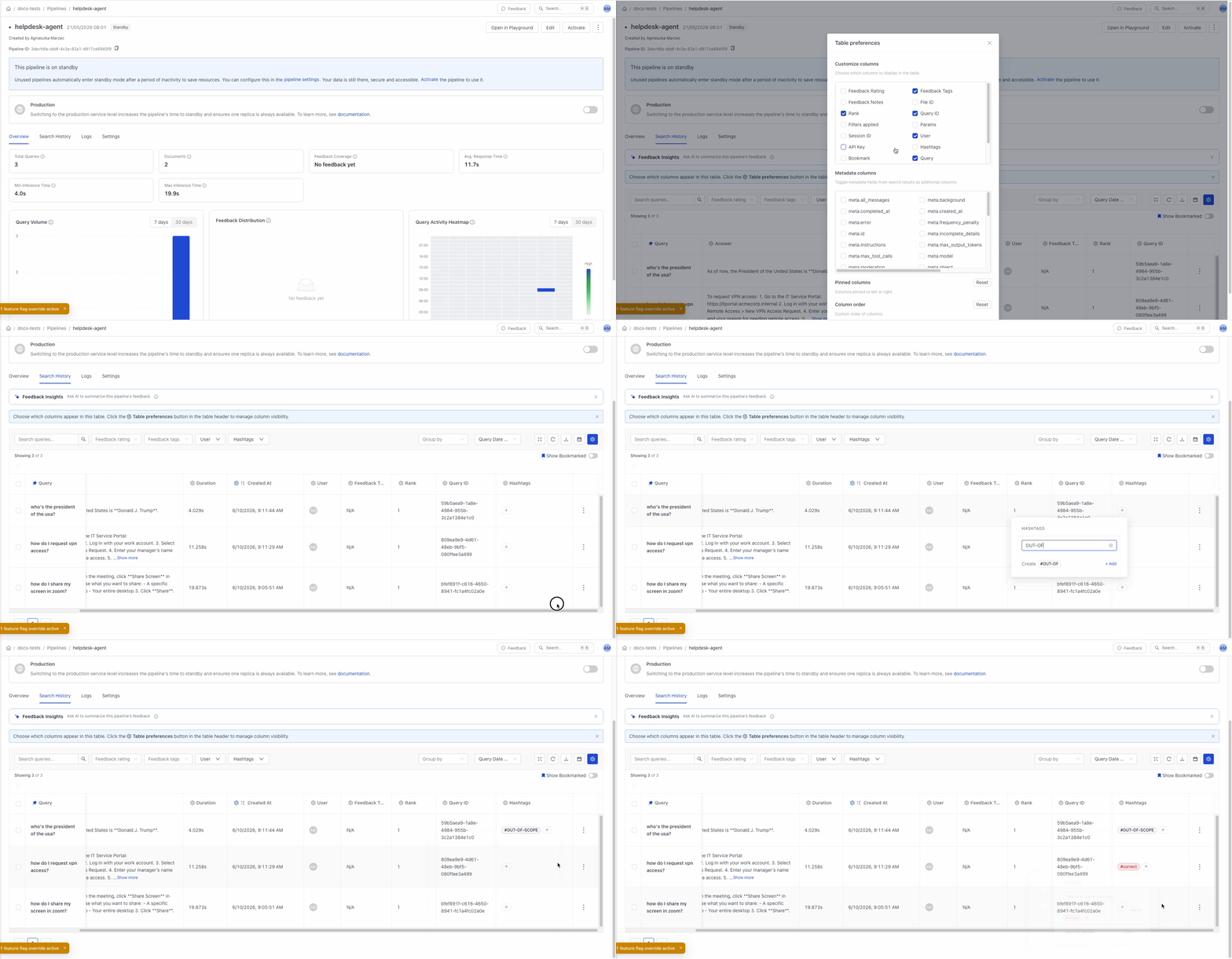
Add text notes to individual search history records to help you keep track of important information. Use notes to record observations, flag interesting queries, or leave context for your team. Notes are shown in the Search History table on the Pipeline Details page and in the detailed view for each query. You can add, edit, and delete notes at any time.
You can also add hashtags to group related records together.
Both notes and hashtags are searchable. You can view and manage them if you enable the Notes and Hashtags columns in the Search History table.
Validation Warnings No Longer Block Pipeline Deployment
Pipeline validation messages are now split into two categories: errors and warnings. Only errors prevent a pipeline from being deployed. Warnings are informational hints about your configuration and do not block deployment — your pipeline deploys successfully even when warnings are present. Review warnings to make sure your configuration is intentional.
For more information, see Troubleshoot Pipelines and Indexes.
AI-Powered Feedback insights
Use the AI-powered Feedback Insights panel to analyze feedback patterns and generate executive summaries to help you understand performance trends and identify areas for improvement.
Click Search History on the Pipeline Details page, expand the Feedback Insights panel, and use one of the suggested prompts or your own query to get insights.
Clearer Index Status and Stats
The Indexes page now shows a Skipped status when all uploaded files were processed but none produced any documents. This gives you a clear signal that indexing completed but no content is available for search.
Math Formula Rendering in Pipeline answers
Pipeline answers in Playground and Builder now automatically render mathematical formulas. If your LLM returns LaTeX notation, the platform typsets it into readable math. The following formats are supported:
- Inline math:
$E=mc^2$or\(E=mc^2\) - Block math:
$$\sigma = \sqrt{x}$$or\[\sigma = \sqrt{x}\] - Fenced code blocks tagged:
```latexor```tex
No configuration is needed, rendering is on by default for all completed answers. To avoid rendering errors, math is temporarily disabled on the answer bubble that is still streaming; it turns on as soon as the response is complete.
Was this page helpful?