Use Your Pipelines as Tools in n8n
Connect n8n to your workspace MCP server so an AI Agent or a workflow step can call your services as tools.
About This Task
To use your services as tools, n8n needs an MCP client that connects to the workspace MCP server. Which client you use depends on where n8n runs:
- Self-hosted n8n: Install the Haystack Enterprise MCP community node (
@deepset-ai/n8n-nodes-haystack-enterprise-mcp). We recommend this option. It supports OAuth with Dynamic Client Registration (DCR) and works if you belong to more than one organization. - n8n Cloud: The Haystack Enterprise MCP node doesn't run on n8n Cloud. Use n8n's built-in nodes instead: MCP Client runs one tool as a regular step in your workflow, and MCP Client Tool lets an AI Agent decide which tools to call.
Prerequisites
- Services enabled as tools on the workspace MCP server. For details, see Use the Workspace MCP Server.
- One way to authenticate: an API key, or OAuth. For an API key, see Generate API Keys.
- For self-hosted n8n: community nodes enabled on your instance. For details, see the n8n documentation on installing community nodes.
- For an AI Agent: a chat model to connect to it, such as the OpenAI Chat Model or the Haystack Enterprise Chat Model.
Connect on Self-Hosted n8n
- Install the package
@deepset-ai/n8n-nodes-haystack-enterprise-mcp. - Add an AI Agent node to your workflow.
- Click the + icon under Chat Model on the AI Agent and add a chat model.
- Click the + icon under Tool on the AI Agent and add the Haystack Enterprise MCP node.
- In the Haystack Enterprise MCP node, set up the credential:
- To use OAuth with DCR, select OAuth2 as the authentication method. Leave Use Dynamic Client Registration turned on and click Connect. If DCR is enabled for your deployment, you don't need an admin to create an OAuth client.
- To use an API key, select API Key as the authentication method and paste your API key.
- If you don't use the European cloud, change the Server URL. For details, see Set the Server URL.
- If you use OAuth2 and belong to more than one organization, enter your organization ID. For details, see Find Your Organization ID.
- In the node's parameters, select your Workspace.
- In Tools to Include, choose which of your services the AI Agent can use. Select All, Selected, or All Except.
- Run the AI Agent with a question that one of your services can answer. If the Agent calls the service, the setup works.
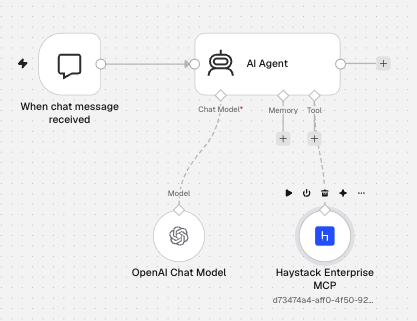
For a ready-made setup, import ai-agent-with-mcp-tools-example.json. For import steps, see Start from an Example Workflow.
Connect on n8n Cloud
The MCP Client and MCP Client Tool nodes connect to the workspace MCP server with the same endpoint and authentication. These steps set up the MCP Client node:
-
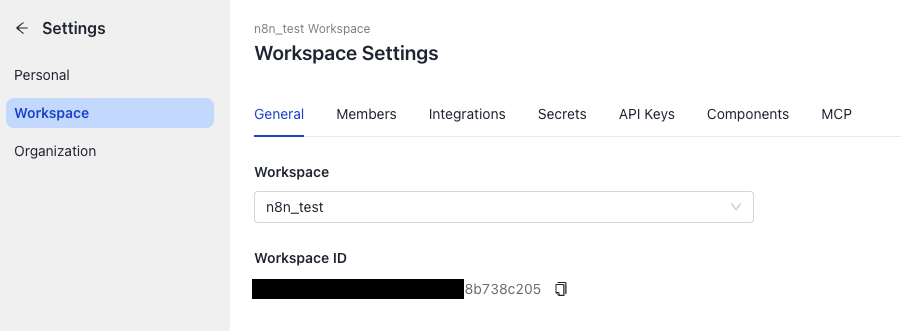
In Haystack Enterprise Platform, go to Settings > Workspace and open the General tab. Click the copy icon next to the Workspace ID.
-
In your n8n workflow, add the MCP Client node.
-
In the node's Parameters, enter your workspace MCP URL in the Endpoint field:
https://api.cloud.deepset.ai/api/v2/workspaces/<your-workspace-id>/mcp. The base URL is your server URL. If you don't use the European cloud, change it. For details, see Set the Server URL. -
In Authentication, select the authentication method:
- MCP OAuth2: Click Connect to below the field to open the credential settings. Leave Use Dynamic Client Registration turned on. In Server URL, enter the same base URL as in the endpoint, without the path. Click Connect and sign in to Haystack Enterprise Platform.
- Bearer: Click Connect to Bearer Auth below the field. In the window that opens, paste your API key into the bearer token field and save the credential.
-
In the Tool parameter, select From list, and then select a tool. The list shows the services that are enabled as tools on the workspace MCP server.
-
Enter the parameters of the tool. In Input Mode, choose to enter them manually or as JSON.
To let an AI Agent call your services instead, add the MCP Client Tool node to the Tool input of an AI Agent node, and add a chat model to the AI Agent. Use the same endpoint and authentication as for the MCP Client node. In Tools to Include, choose which tools the AI Agent can use.
The MCP Client node doesn't support organization IDs, so MCP OAuth2 connects to your default organization. If the workspace belongs to another organization, use Bearer authentication with an API key from that organization.
Troubleshooting
- n8n can't find the Haystack Enterprise MCP node: Make sure community nodes are enabled on your self-hosted instance and that your n8n version is supported. For supported versions, see the README of the package.
- The AI Agent doesn't list any tools: Make sure your services are enabled as tools on the workspace MCP server, and that Tools to Include doesn't filter them out.
- The MCP Client node returns "Workspace not found": The workspace belongs to an organization other than your default one. Use Bearer authentication with an API key from that organization.
- A pipeline call times out: The first call after the idle timeout waits for a cold start. For details, see Response Time and Streaming.
Related Information
Was this page helpful?