Use Haystack Enterprise Nodes in n8n
Connect Haystack Enterprise Platform to your n8n workflows. Chat with your services, manage your knowledge base, and let AI Agents call your pipelines as tools.

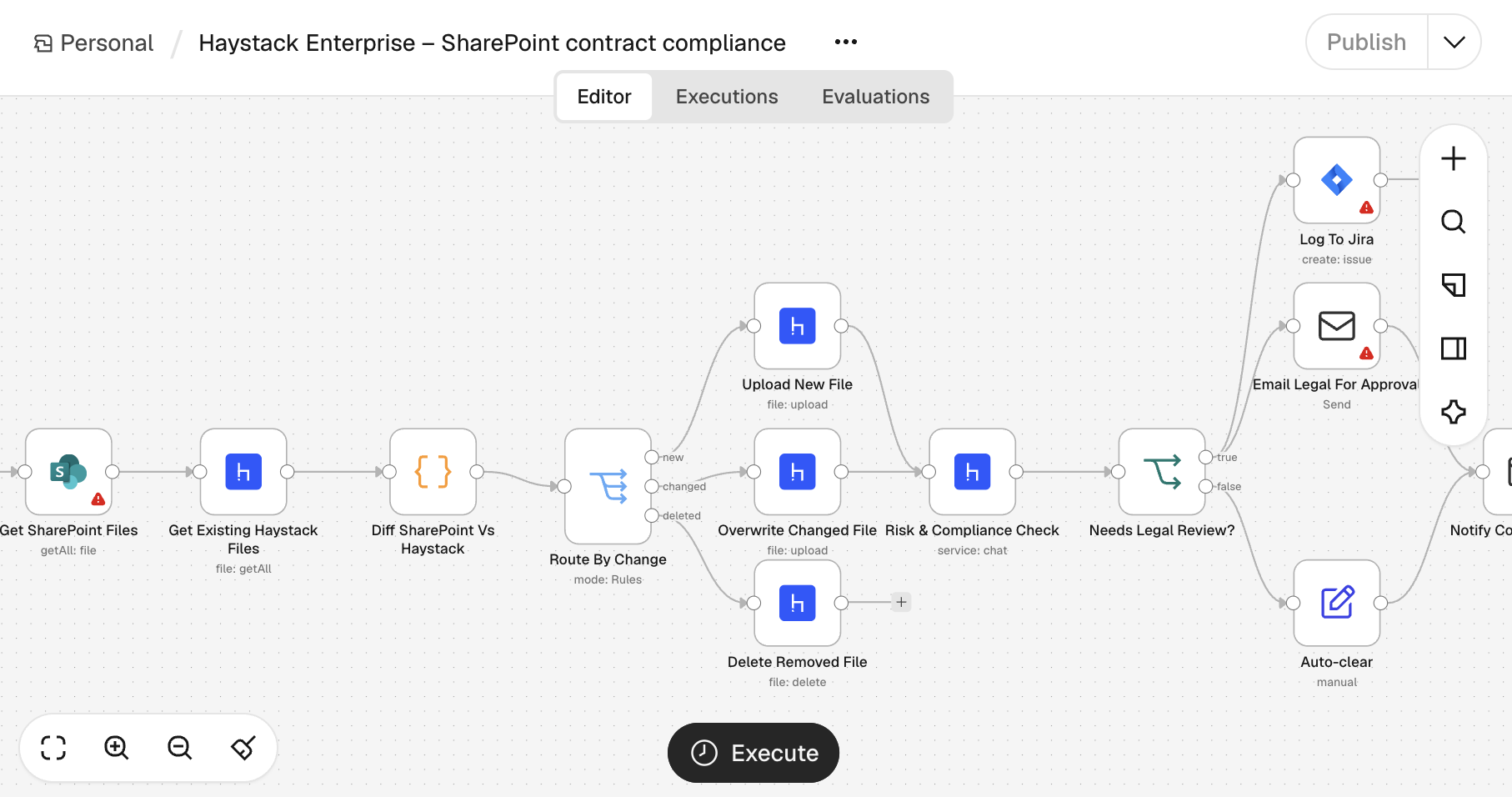
Example workflow: Contracts from SharePoint are synced to your workspace and checked for risk and compliance by a service. Click the image to enlarge it.
Use Cases
Combine n8n triggers and apps with Haystack Enterprise Platform services to automate your work, for example:
- Document ingestion: A file lands in Google Drive, Notion, or S3. n8n picks it up, uploads it to Haystack Enterprise Platform, and confirms in Slack. Your files stay indexed without manual uploads.
- Research knowledge base: A user asks a question in Slack or by email. n8n sends it to a Haystack Enterprise AI service that answers from your internal documents. n8n returns the answer in the same channel. You can also run a schedule that collects content from sources like Notion, websites, or email, have a Haystack Enterprise AI service summarize it, and send a digest to Slack or email.
- Data extraction and enrichment: A file lands in Google Drive or SharePoint. n8n sends it to a Haystack Enterprise AI service that extracts the information into structured fields. n8n writes the structured data to Google Sheets.
- Classification: A new ticket arrives in Zendesk, Jira, or email. A Haystack Enterprise AI service classifies it and extracts the key details in one run, and n8n writes the structured fields back to the ticket system.
- Approvals with AI assistance: When a supplier contract arrives by email, a Haystack Enterprise AI service extracts key terms, checks them against internal guidance, and recommends a team to verify. n8n then routes a summary with any flagged clauses to the recommended team for approval before filing it in SharePoint.
About This Task
n8n is a workflow automation platform. Haystack Enterprise Platform offers two community node packages for it:
- Haystack Enterprise AI (
@deepset-ai/n8n-nodes-haystack-enterprise): Works on n8n Cloud and self-hosted n8n. It's verified by n8n, so you can install it directly from the n8n nodes panel. For details, see the Haystack Enterprise AI integration page on n8n. The package contains two nodes:- Haystack Enterprise AI: Works with the services, files, indexes, and search sessions in your workspace. For all actions, see Haystack Enterprise AI Node Operations.
- Haystack Enterprise Chat Model: Makes a service the language model of an n8n AI Agent. For details, see Use a Service as an AI Agent Model in n8n.
- Haystack Enterprise MCP (
@deepset-ai/n8n-nodes-haystack-enterprise-mcp): Connects an n8n AI Agent to the workspace MCP server, so the Agent can call your pipelines as tools. It runs on self-hosted n8n only. For details, see Use Your Pipelines as Tools in n8n.
This guide covers the setup that every Haystack Enterprise AI workflow needs: install the node, connect it to your workspace, and run a first action.
Prerequisites
- An n8n instance, either on n8n Cloud or self-hosted. For details, see Choose How to Use n8n.
- Access to a Haystack Enterprise Platform workspace.
- One or more services in your workspace, if you want to chat with a service. File and index actions don't need a service. For details, see Create a Service.
- One way to authenticate:
- Permission to generate an API key in Haystack Enterprise Platform. For details, see Generate API Keys.
- For OAuth2, a Haystack Enterprise Platform admin who can create an OAuth2 client for you. You give the admin a redirect URL from n8n during setup.
Install the Node
- In n8n, click Create workflow.
- Click the + icon on the side of the canvas to open the nodes panel.
- Search for Haystack Enterprise AI.
- Click Install node.
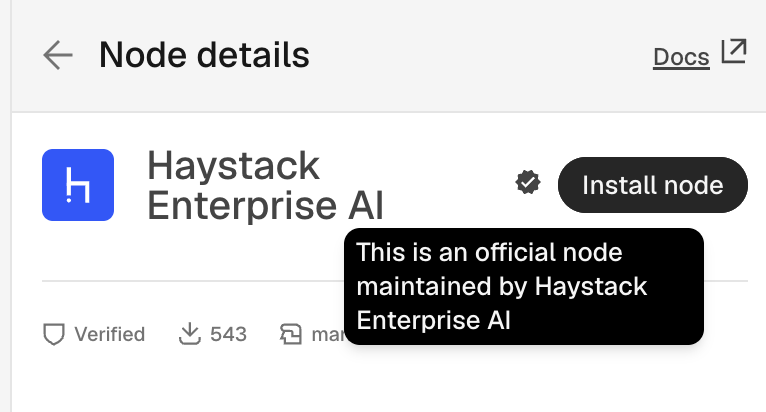
- Select an action to add the node to your workflow. For example, select Get many Services to list all services in your workspace. For all actions, see Haystack Enterprise AI Node Operations.
The node opens with an empty credential field. Next, create the credential.
Set Up Credentials
The Haystack Enterprise AI and Haystack Enterprise Chat Model nodes use the same credential. You can authenticate with an API key or with OAuth2:
- API key: The fastest option. The node runs with the permissions of the key.
- OAuth2: The node runs with the workspace permissions of the user who signs in. An admin must create the OAuth2 client first.
Authenticate with an API Key
- In Haystack Enterprise Platform, go to Settings > Workspace > API Keys for a workspace-scoped key or Settings > Organization > API Keys for an organization-scoped key. Generate a key with access to the workspaces and resources your workflow uses. For details, see Generate API Keys.
- In n8n, click the pencil icon next to the credential to open the credential configuration.
- At the top right, select API Key as the authentication method.
- Paste your API key into the API Key field.
- Optional: If you don't use the European cloud, change the Server URL field. For details, see Set the Server URL.
- Save the credential. n8n tests the connection automatically. If the test passes, the credential works.
Authenticate with OAuth2
- In n8n, click the pencil icon next to the credential to open the credential configuration.
- At the top right, select OAuth2 as the authentication method.
- Copy the OAuth Redirect URL from the credential and send it to your Haystack Enterprise Platform admin. The admin registers it on a new OAuth2 client that uses PKCE.
- Enter the Client ID, Authorization URL, and Access Token URL that the admin gives you. Add the Client Secret only if the client is confidential.
- Set Grant Type to PKCE and leave Scope at its default.
- Optional: If you don't use the European cloud, change the Server URL field. For details, see Set the Server URL.
- Optional: If you belong to more than one organization, enter your organization ID in the Organization ID field. For details, see Find Your Organization ID.
- Click Connect and sign in to Haystack Enterprise Platform.
Set the Server URL
The Server URL tells the nodes which Haystack Enterprise Platform API to call. The default is the European cloud, so most users don't need to change it. If you use another deployment, enter its API URL:
- European cloud:
https://api.cloud.deepset.ai(default) - US cloud:
https://api.us.deepset.ai - Development or private deployment: your own API URL
Use the API URL, not the URL you open in your browser to work in Haystack Enterprise Platform.
Find Your Organization ID
An API key is scoped to a workspace or organization, so it doesn't need an organization ID. With OAuth2, if you belong to one organization, the credential uses it automatically and you can leave Organization ID empty. If you belong to more than one, copy the ID of the organization you want to make calls to:
- In Haystack Enterprise Platform, go to Settings > Organization and open the General tab.
- Select the organization you want to use.
- Click the copy icon next to the Organization ID.
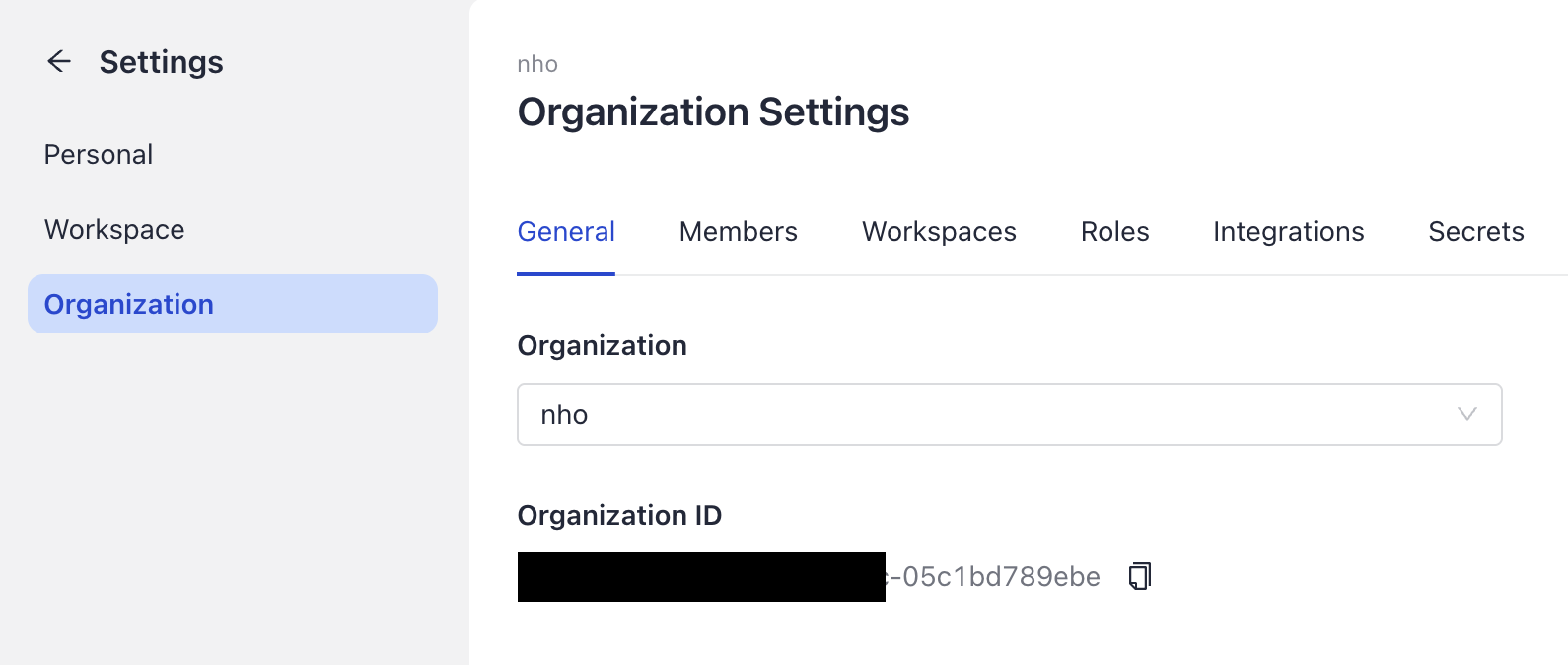
- Paste the ID into the Organization ID field of the n8n credential.
Run Your First Action
- In the node's Workspace field, select your workspace. If the list is empty or your workspace is missing, refresh the list. For details, see Troubleshooting.
- Click Execute step. With Get many Services, the output on the right lists all services in your workspace.
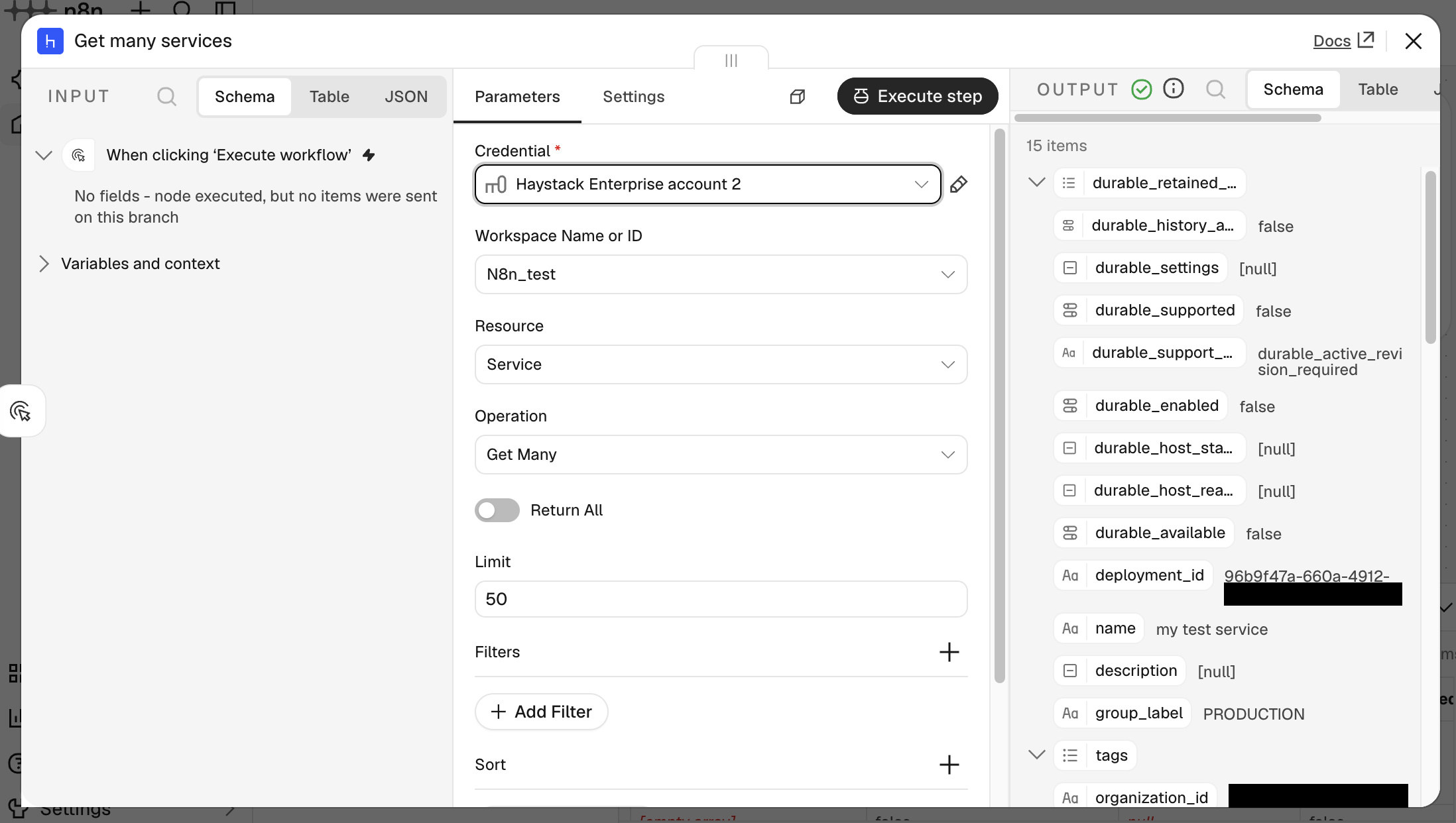
If the output shows your services, the node is connected. You can now build the rest of your workflow or start from an example.
Start from an Example Workflow
Instead of building a workflow from scratch, import an example and adapt it. Each example comes with notes on the canvas that explain the steps. Install the node and create a credential first, so you can select them in the example.
Import an Example
- In n8n, click Create workflow.
- Add the example to the canvas in one of these ways:
- Copy and paste: Open the example in the examples folder on GitHub, copy the entire raw JSON file, and paste it onto the canvas.
- Import from a file: If you cloned the GitHub repository, open the menu on the canvas, select Import > From file, and select the example file on your computer.
- On each Haystack Enterprise node, select your credential. If the example uses other nodes, such as an OpenAI Chat Model or Google Drive, add their credentials too.
- On each Haystack Enterprise node, select your workspace and service.
Available Examples
chat-example.json: Asks one question through a form and returns the answer from a service. Use this chat style for one-off questions when you don't need a conversation history and prefer answers delivered all at once rather than streamed.chat-with-auto-created-search-session-example.json: Streams answers in the n8n chat window and keeps conversation history in a search session created automatically by the service. Use this for the simplest conversational setup.chat-with-search-session-example.json: Streams answers in the n8n chat window and keeps conversation history in a search session created explicitly by the workflow using the Search Session resource. Use this when you want control over session creation.haystack-chat-model-agent-example.json: Uses a service as the model of an n8n AI Agent, with Simple Memory for the conversation history. We recommend this example for conversational chat.agent-with-chat-tools-example.json: Gives an AI Agent two services as tools: one for standalone questions and one for follow-up questions that keep a search session.mirror-files-in-google-drive-example.json: Syncs a Google Drive folder with your workspace every night. It uploads new files, overwrites changed ones, deletes removed ones, and then waits for indexing to finish and builds a report.ai-agent-with-mcp-tools-example.json: Gives an AI Agent your pipelines as tools through the Haystack Enterprise MCP node. This example is in the MCP repository and runs on self-hosted n8n. For setup, see Use Your Pipelines as Tools in n8n.
Troubleshooting
-
n8n can't find the Haystack Enterprise AI node: On self-hosted n8n, make sure community nodes are enabled and that your n8n version is supported. For supported versions, see the README of the package.
-
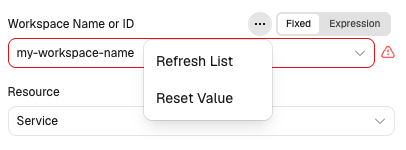
The workspaces or services list shows an error or wrong values after you set up the credentials: n8n doesn't refresh the list by itself. Refresh your browser, or click the three-dot menu of the field and select Refresh List.
-
Requests fail with an authorization error: Check that your API key or OAuth2 user has access to the workspace and the resources your workflow uses.
Related Information
Was this page helpful?